
Introduction
One of the biggest advantages of WordPress is the ability to add new features without having to build everything yourself. This is where WordPress plugins come in. Whether you want to add a contact form, improve your website’s SEO, protect your website, create an online store or improve performance, there is likely a plugin that can help. But if you’re new to WordPress, the word “plugin” may sound complicated. So, what exactly is a WordPress plugin? In simple terms, a plugin is software that adds extra functionality to your WordPress website.
In this beginner’s guide, we’ll explain what WordPress plugins are, how they work, what types of plugins you may need and how to manage them safely.
What Is a WordPress Plugin?
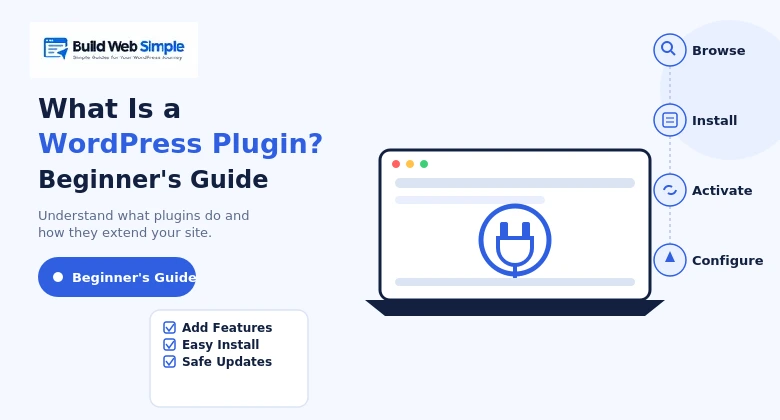
A WordPress plugin is a piece of software that adds features or functionality to a WordPress website. WordPress provides the basic foundation for your website. Plugins allow you to extend that foundation. For example, a basic WordPress website doesn’t automatically include every feature you might want.
You may want to add:
- A contact form
- SEO tools
- Security features
- Website backups
- Caching
- Analytics
- Social sharing
- Ecommerce
- Image optimization
Instead of developing all these features yourself, you can install plugins that provide them.This makes WordPress much more flexible for beginners and experienced website owners.
How Do WordPress Plugins Work?
Plugins work by adding their own code and functionality to WordPress.When you install a plugin, its files are added to your WordPress website.When you activate the plugin, WordPress loads its functionality.For example, suppose you install a contact form plugin.
The plugin can add:
- A form-building interface
- Form fields
- A contact form block or shortcode
- Email notifications
- Form management features
You don’t have to build these features from scratch.
The plugin does the technical work for you.
Why Do You Need WordPress Plugins?
You don’t necessarily need many plugins. However, plugins are useful when you need functionality that isn’t included in WordPress itself.For example, you might install an SEO plugin because you want additional tools for managing your website’s search engine optimization.
You might install a backup plugin because you want an easier way to create website backups. You might install a contact form plugin so visitors can contact you without displaying your email address publicly.
The key is to install plugins because you need their functionality, not simply because they are available.
What Can WordPress Plugins Do?
Plugins can provide almost every type of functionality you can imagine.
Here are some of the most common categories.
SEO Plugins
SEO plugins can provide tools that help you manage things such as:
- SEO titles
- Meta descriptions
- XML sitemaps
- Structured data
- Search engine settings
SEO plugins don’t automatically make your website rank well, but they can make important SEO settings easier to manage.
Security Plugins
Security plugins can provide additional protection features.
Depending on the plugin, they may help with:
- Login protection
- Malware scanning
- Firewall features
- Security monitoring
- Spam protection
However, a plugin should be only one part of your overall website security strategy.
Backup Plugins
Backup plugins can help you create copies of your website.
A backup may include:
- WordPress files
- Database information
- Media files
- Plugin settings
- Theme files
Having reliable backups is important before making major changes to your website.
Performance Plugins
Performance plugins can help improve website speed.
They may provide features such as:
- Caching
- CSS optimization
- JavaScript optimization
- Image optimization
- Database cleanup
However, performance plugins should be configured carefully because aggressive optimization settings can sometimes cause website problems.
Contact Form Plugins
Contact form plugins allow you to create forms for your visitors.
A simple contact form might include:
- Name
- Subject
- Message
This is particularly useful for business websites and blogs.
Ecommerce Plugins
Ecommerce plugins can turn WordPress into an online store.
For example, WooCommerce adds features for:
- Products
- Shopping carts
- Checkout
- Payments
- Orders
- Shipping
If you’re interested in ecommerce, see our guide What Is WooCommerce? A Beginner’s Guide.
WordPress Plugins vs WordPress Themes
Beginners sometimes confuse plugins and themes.
They have different purposes.
A WordPress Theme
A theme primarily controls the appearance and design of your website.
It can affect:
- Colors
- Typography
- Layout
- Header
- Footer
- Blog design
A WordPress Plugin
A plugin primarily adds functionality.
For example:
- SEO
- Contact forms
- Security
- Backups
- Ecommerce
- Analytics
A simple way to remember it is:
Theme = how your website looks
Plugin = what your website can do
Are WordPress Plugins Free?
Many WordPress plugins are available for free.
You can find free plugins through the official WordPress plugin directory.
Some plugins also have premium versions.
A premium plugin may provide:
- More features
- Advanced settings
- Premium support
- Automatic updates
- Additional integrations
Free doesn’t necessarily mean bad, and premium doesn’t automatically mean better.
The important thing is whether the plugin is reliable and suitable for your website.
What Is a Premium WordPress Plugin?
A premium plugin is a plugin that requires payment, either as a one-time purchase or subscription depending on the developer.Premium plugins can be useful when you need advanced functionality or professional support.
Before purchasing one, check:
- Features
- Price
- Renewal cost
- Support
- Update policy
- Compatibility
- Refund policy
Don’t purchase a premium plugin simply because it has more features.
Only pay for functionality you actually need.
How Many WordPress Plugins Do You Need?
There is no specific number of plugins that every WordPress website should have. A website might work perfectly with several plugins, while another website may need more.The important thing is quality rather than quantity.
A good plugin should ideally be:
- Well maintained
- Compatible with your website
- Secure
- Regularly updated
- Properly developed
- Useful for your specific needs
Avoid installing plugins simply to experiment with features you don’t need.
Can Too Many Plugins Slow Down WordPress?
They can, but the number of plugins alone doesn’t determine website speed.The quality and behavior of the plugins matter.A poorly developed plugin can have a larger performance impact than several lightweight plugins.Some plugins may load additional scripts, database queries or other resources.That’s why it’s better to keep your website’s plugin collection clean and purposeful.If you don’t need a plugin, consider deactivating and removing it.
How to Choose a Good WordPress Plugin
Before installing a plugin, take a few minutes to evaluate it.
Check the Plugin’s Reviews
Look at user ratings and reviews.Reviews can help you identify common problems or compatibility issues.
Check When It Was Last Updated
Regular updates are a positive sign.Be cautious with plugins that haven’t been maintained for a long time.
Check Active Installations
A large number of active installations can indicate that a plugin is widely used, although it shouldn’t be your only consideration.
Check Compatibility
Make sure the plugin is compatible with your version of WordPress.Also consider compatibility with your theme and other important plugins.
Check Support
If the plugin provides an important function for your business, make sure you can get help if something goes wrong.
Where Should You Download WordPress Plugins?
For free plugins, the safest starting point is the official WordPress plugin directory.For premium plugins, download them directly from the plugin developer or a reputable marketplace.Avoid downloading “nulled” or modified premium plugins from unofficial websites.These files can contain malicious code and can put your entire website at risk.
How Do You Install a WordPress Plugin?
There are several ways to install a plugin.
For most beginners, the easiest method is through the WordPress dashboard.
Go to:
Plugins → Add New Plugin
Search for the plugin you want.
Then click:
Install Now → Activate
You can also upload a plugin ZIP file if you obtained a legitimate plugin outside the WordPress plugin directory.
For a complete walkthrough, see:
How to Install a WordPress Plugin Step by Step
How Do You Activate a Plugin?
Installing a plugin doesn’t always mean that it is active.
To activate an installed plugin:
- Open your WordPress dashboard.
- Go to Plugins → Installed Plugins.
- Find the plugin.
- Click Activate.
Once activated, the plugin’s functionality becomes available.Some plugins will add their own menu item to the WordPress dashboard.
How Do You Deactivate a Plugin?
If you want to temporarily stop using a plugin, you can deactivate it.
Go to:
Plugins → Installed Plugins
Find the plugin and click:
Deactivate
The plugin will remain installed but won’t run.
Deactivation can also be useful when troubleshooting a website problem.
How Do You Delete a WordPress Plugin?
If you no longer need a plugin, you can remove it.
First deactivate the plugin.
Then click:
Delete
WordPress will remove the plugin files.
Before deleting an important plugin, make sure you don’t need any of its functionality.
Some plugins may also leave data behind, so check their documentation if complete removal is important.
Should You Update WordPress Plugins?
Yes.
Keeping plugins updated is an important part of maintaining a WordPress website.
Updates may include:
- Security fixes
- Bug fixes
- Compatibility improvements
- New features
- Performance improvements
However, it’s always a good idea to have a recent backup before making significant changes.
What Happens When a Plugin Conflicts With Another Plugin?
Sometimes plugins can conflict with each other.
For example, two plugins may attempt to modify the same functionality.
This can cause:
- Broken layouts
- Error messages
- Missing features
- Slow performance
- Unexpected behavior
If your website develops a problem immediately after installing a plugin, that plugin may be one possible cause.
You can temporarily deactivate it to see whether the problem disappears.
What Happens When a Plugin Conflicts With Your Theme?
Plugins can sometimes conflict with themes as well.
This can cause problems with:
- Page layouts
- Buttons
- Menus
- Forms
- JavaScript features
- Styling
Before installing important plugins, check whether they are compatible with your theme.
Do You Need a Plugin for Everything?
No.This is one of the most important lessons for WordPress beginners. You don’t need a plugin for every small change. Some simple design changes can be made through WordPress or your theme’s customization options.Adding unnecessary plugins makes your website more difficult to manage.
Before installing a plugin, ask:
Do I really need this feature?
If the answer is no, don’t install it.
Common WordPress Plugin Mistakes Beginners Make
Installing Too Many Plugins
More plugins don’t necessarily mean a better website.
Install only what you need.
Using Abandoned Plugins
Avoid relying on plugins that haven’t been maintained for a long time.
Downloading From Untrusted Sources
Never install suspicious or modified plugins.
Ignoring Updates
Outdated plugins can create security and compatibility problems.
Installing Multiple Plugins for the Same Job
You usually don’t need several plugins performing the same function.
Not Creating Backups
Always have a backup strategy before making significant changes.
WordPress Plugin Checklist
Before installing a plugin, ask:
- Do I really need it?
- Is it from a trustworthy source?
- Is it regularly updated?
- Does it have good reviews?
- Is it compatible with my WordPress version?
- Is support available?
- Do I have a recent backup?
After installation:
- Activate the plugin
- Configure the necessary settings
- Test the website
- Check the mobile version
- Monitor website performance
- Keep the plugin updated
Frequently Asked Questions
What is a WordPress plugin?
A WordPress plugin is software that adds additional functionality to a WordPress website.
Are WordPress plugins necessary?
Not every website needs plugins, but plugins are useful when you need functionality that isn’t included in WordPress itself.
Are WordPress plugins free?
Many plugins are free, while others offer premium versions or require payment.
Can plugins damage a WordPress website?
A poorly developed, outdated or incompatible plugin can cause problems. That’s why you should choose plugins carefully and keep backups.
How many plugins should I install?
There is no fixed number. Install only the plugins that provide functionality your website actually needs.
Can I remove a WordPress plugin?
Yes. You can normally deactivate a plugin and then delete it from the WordPress dashboard.
Should I update my plugins?
Yes. Keeping plugins updated can provide security, compatibility and bug fixes.
Conclusion
WordPress plugins are one of the main reasons WordPress is so flexible. They allow you to add new features to your website without having to develop everything yourself. You can use plugins for SEO, security, backups, contact forms, performance, ecommerce and many other purposes. However, installing plugins should not become a race to collect as many features as possible. Choose plugins carefully, use trustworthy sources, keep them updated and remove plugins you no longer need.A simple WordPress website with the right plugins is usually better than a website overloaded with unnecessary ones. Start with what your website actually needs and add new functionality as your website grows.